How to Create Text to Audio: A Practical 2026 Guide

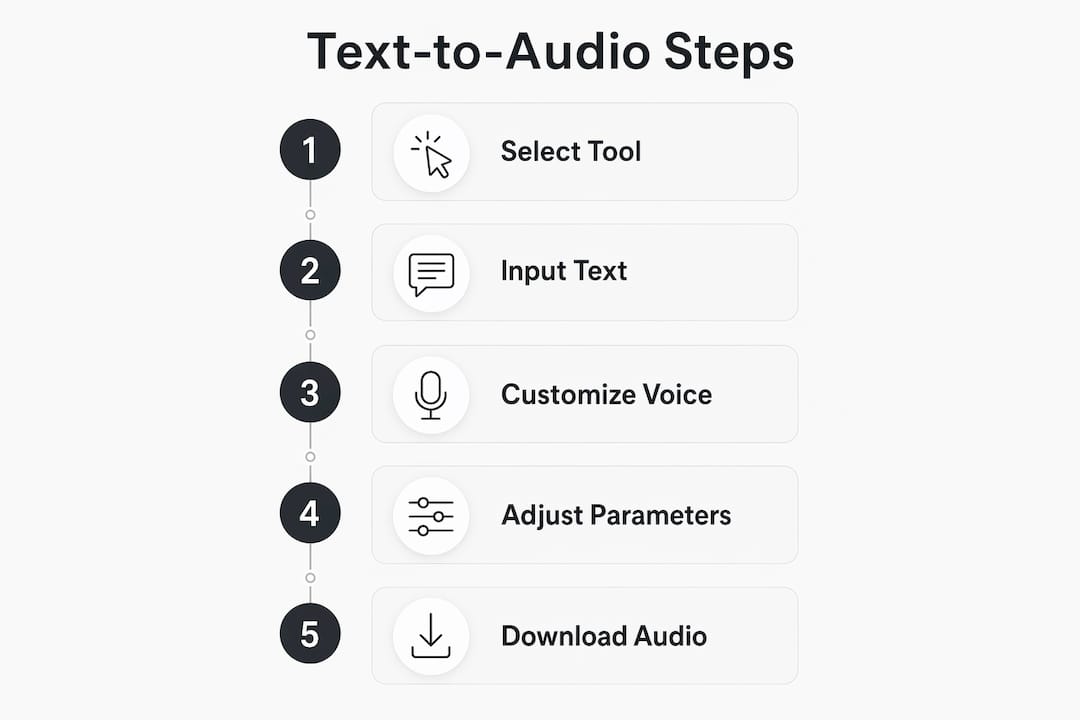
Creating text to audio takes five steps: paste your text into a text-to-speech (TTS) platform, pick a voice and language, adjust speed and pitch, generate the audio, then download your file. That’s the whole process. Many tools handle all of it quickly, and most offer a free tier so you can test before spending anything.
Here’s what the core workflow looks like:
- Step 1: Paste or type your text into a TTS platform like Micmonster, TTSMaker, or Murf AI.
- Step 2: Choose your preferred voice style and language from the available options.
- Step 3: Adjust speech parameters: speaking rate, pitch, volume, and emphasis where the tool allows.
- Step 4: Click generate, then preview the audio before committing to a download.
- Step 5: Download your file in MP3, WAV, or OGG depending on your use case.
MP3 works for podcasts and YouTube. WAV is better when you plan to edit the audio further. OGG is a solid middle ground for web use. Most platforms support all three.
How to create text to audio: a step-by-step guide
Choosing the right tool
The tool you pick shapes everything downstream. Voice variety, language support, output quality, and pricing all differ significantly across platforms. If you need audio in multiple languages or want to produce content at scale, start by checking how many voices and locales a platform supports before anything else.

For most creators, a browser-based tool is the fastest starting point. No installation, no API keys. You paste text, pick a voice, and download. If you’re building audio into an app or workflow, you’ll want a platform that offers a REST API or SDK instead.
Formatting your text for better results
Raw text often produces awkward output. Punctuation matters more than you’d expect: a period creates a natural pause, while a comma produces a shorter one. If your text has abbreviations, spell them out. “Dr.” might be read as “drive” instead of “doctor” depending on the engine.
- Remove excessive line breaks or special characters before pasting.
- Use full sentences rather than fragments for more natural pacing.
- Spell out numbers when the context is conversational (“twenty-five” reads better than “25” in many voices).
- Break very long paragraphs into shorter ones to give the engine natural breathing room.
Customizing speech parameters
Most platforms let you adjust at least three parameters: speed, pitch, and volume. Speed is the most impactful. A slightly slower rate (around 0.9x) tends to sound more natural for educational content, while 1.1x works well for energetic marketing audio.

Pro Tip: If your platform supports SSML (Speech Synthesis Markup Language), use it. SSML lets you insert precise pauses with <break> tags, control emphasis with <emphasis>, and adjust pronunciation for brand names or technical terms. SSML gives you control over pitch, speaking rate, volume, and voice attribution that basic sliders simply can’t match.
Downloading and managing your audio files
Once you’re happy with the preview, download in your target format. WAV files are uncompressed and lossless, ideal for editing in tools like Audacity or Adobe Audition. MP3 files are compressed and widely compatible. OGG offers a good quality-to-size ratio for web embedding.
File size matters if you’re producing long content. A 10-minute MP3 at standard quality runs roughly 10 MB. WAV files for the same duration can be 10 times larger. For audiobooks or long podcasts, batch processing APIs handle large jobs asynchronously, which is far more practical than waiting for a real-time render.
Privacy and platform considerations
If your text contains sensitive information, the platform’s processing location matters. Some tools send your text to cloud servers for synthesis. Others, like browser-based tools using WebAssembly locally, process everything on your device. Your text never leaves the browser. For legal documents, personal scripts, or proprietary content, local processing is the safer choice.
Which US text-to-audio tools are worth using?
Micmonster is the primary platform to know for US-based creators who need serious voice and language depth.
| Tool | Services offered | Voice and language variety | Pricing and trial | Use case suitability | Rating |
|---|---|---|---|---|---|
| Micmonster | AI TTS, voice generation, audio download | 600+ voices, 140 languages | Free trial, no credit card required | Videos, audiobooks, podcasts, e-learning | 2.8★ (11 reviews) |
| TTSMaker | TTS conversion, audio download | Multiple languages, various voice styles | 20,000 characters/week free, commercial use included | Reading, e-books, general content | — |
| Murf AI | TTS, voiceover editor, pitch/speed control | Over 600 voices across 140 languages | Free plan available | Video content, e-learning, presentations | — |
Micmonster’s depth is its clearest differentiator. Over 600 voices across 140 languages puts it well ahead of most browser-based tools for multilingual projects. The free trial with no credit card required makes it easy to test voice quality before committing to a paid plan. It’s built specifically for creators producing videos, audiobooks, podcasts, and e-learning content, so the voice styles lean expressive rather than robotic.
TTSMaker takes a different approach: a permanent free tier with 20,000 characters per week, commercial use included, no subscription required. For lighter use cases or one-off projects, that’s genuinely useful. Murf AI sits between the two, with a polished editor interface and strong pitch and speed controls that suit teams producing voiceovers at scale.
For AI-driven video production specifically, pairing a TTS tool with professional video workflows can significantly improve the final output quality.
What advanced TTS features actually change the output?
Neural TTS is the technology behind every modern platform worth using. Unlike older concatenative systems that stitched together pre-recorded phonemes, neural models generate speech from scratch using deep learning. The result is intonation that responds to punctuation, sentence structure, and context, not just word-by-word pronunciation.
Here’s what separates a basic TTS tool from a professional-grade one:
- SSML support: Lets you control pauses, emphasis, pronunciation, and speaking style at the tag level, not just with global sliders.
- Voice cloning: Some platforms let you upload audio samples to create a custom voice that matches a specific speaker’s tone and accent.
- Multi-language switching: Advanced tools let you switch languages mid-document using SSML or inline tags, useful for bilingual content.
- Batch processing API: For audiobooks or long-form podcasts, batch synthesis APIs process large jobs asynchronously rather than making you wait for a real-time render.
- Local browser processing: Tools using neural VITS models via WebAssembly generate downloadable audio files entirely on your device, with no server upload.
One technical detail that catches developers off guard: many professional TTS APIs return audio as base64-encoded data rather than a direct audio file. You need to decode that output before it’s playable in a standard media player. It’s an extra step, but it’s straightforward once you know to expect it.
“SSML gives you finer-grain control over how audio output represents pauses in speech, or how audio pronounces dates, times, acronyms, and abbreviations — producing results far closer to natural human speech than plain text input alone.” — Google Cloud Text-to-Speech documentation
For podcasts and e-learning especially, these features close the gap between AI-generated audio and professionally recorded narration. If you’re turning articles into audio for regular publishing, SSML and batch processing together make the workflow sustainable at scale.
Whisprstream takes a different approach to audio from text
If the tools above are about generating a single audio file from a script, Whisprstream is about building a continuous listening experience from everything you already read.
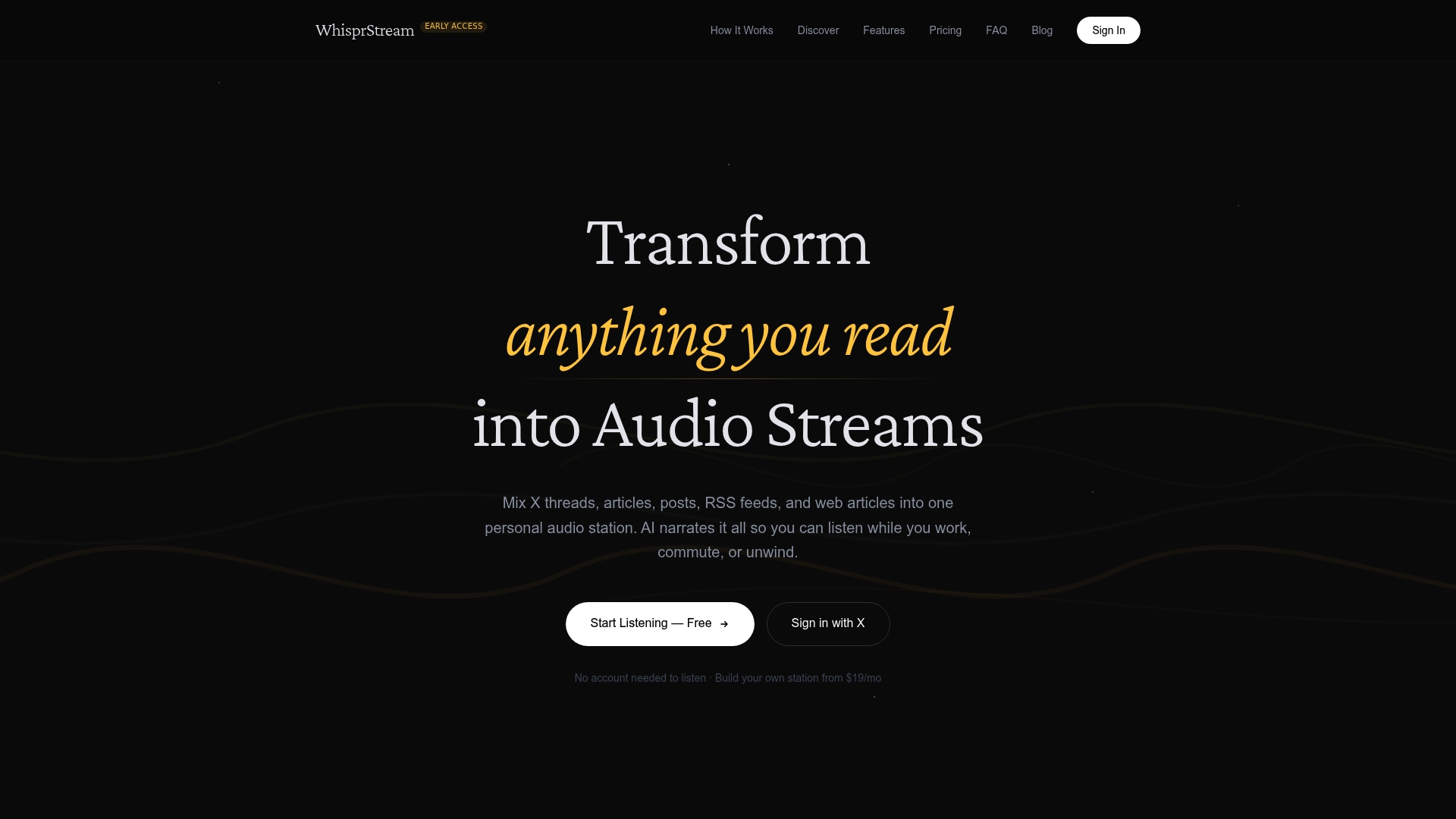
Instead of pasting text and downloading a file, you connect your RSS feeds, X threads, newsletters, and web articles to Whisprstream, and the platform narrates them automatically as a personalized audio station. New content gets added as it publishes. You listen while you commute, cook, or work, without ever opening a browser tab. It’s less about one-off audio generation and more about making your entire reading list listenable on demand.
For creators who want to share audio publicly, Whisprstream also supports embeddable players and shareable stations, so your audience can listen without downloading anything. If you already produce written content regularly and want it to reach people who prefer audio, building an audio station is a faster path than recording or rendering each piece individually.
Key Takeaways
The most effective way to convert text to audio is to match your tool to your use case: a browser-based platform for quick one-off files, a batch API for long content, and a continuous audio station for ongoing reading lists.
| Point | Details |
|---|---|
| Five-step core process | Paste text, select voice and language, adjust parameters, generate, then download in MP3, WAV, or OGG. |
| Format choice matters | WAV is best for editing; MP3 suits podcasts and YouTube; OGG balances quality and file size for web use. |
| Micmonster for depth | Offers 600+ voices across 140 languages with a free trial and no credit card required, suited for videos, audiobooks, and e-learning. |
| SSML for precision | Use SSML tags to control pauses, emphasis, and pronunciation beyond what basic speed and pitch sliders allow. |
| Whisprstream for ongoing content | Converts RSS feeds, articles, and threads into a continuous AI-narrated audio station, updated automatically. |
Recommended
- WhisprStream Blog: Listen to X Threads, RSS & Articles as AI Audio
- Best Ways to Listen to Newsletters and Long-Form Writing in 2026 – WhisprStream
- How to Turn Web Articles Into Audio You Can Stream Anywhere – WhisprStream
- I Built a Tool That Turns My X + RSS Into a Daily Audio Station – WhisprStream