Embeddable Audio Player for Websites: 2026 Guide

An embeddable audio player is a web component that lets visitors play audio files directly on your site, without leaving the page or opening a separate app. The three primary integration methods are CMS plugins, iframe embeds, and the HTML5 <audio> tag, each with distinct trade-offs in compatibility, customization, and maintenance. Getting this choice right determines how much time you spend on upkeep versus how much your audience actually listens. Whisprstream, for example, takes this further by generating AI audio from text content and delivering it through hosted, auto-updating embed codes.
What is an embeddable audio player and why does it matter?
An embeddable audio player is defined as a self-contained media control that renders inside a webpage’s HTML, giving visitors play, pause, skip, and volume controls without any redirect. The term “embedded audio player” is the standard industry label; “embeddable” simply signals that the player ships as a portable snippet you drop into any page.
Engagement is the clearest reason to add one. Audio keeps visitors on a page longer than text alone. A podcast episode, a narrated article, or a music preview gives readers something to do while they scroll, and that dwell time signals quality to search engines. Playlist-ready players that let you add or remove tracks dynamically create a richer experience than a static single-track button. That difference shows up in return visits.

The technical standard behind most modern players is the HTML5 <audio> element, introduced in the HTML5 specification and now supported by every major browser. Platforms like WordPress, Wix, Squarespace, Webflow, and Shopify all support at least one embedding method, so you are not locked into a single approach regardless of your stack.
What are the main methods to embed an audio player on a website?
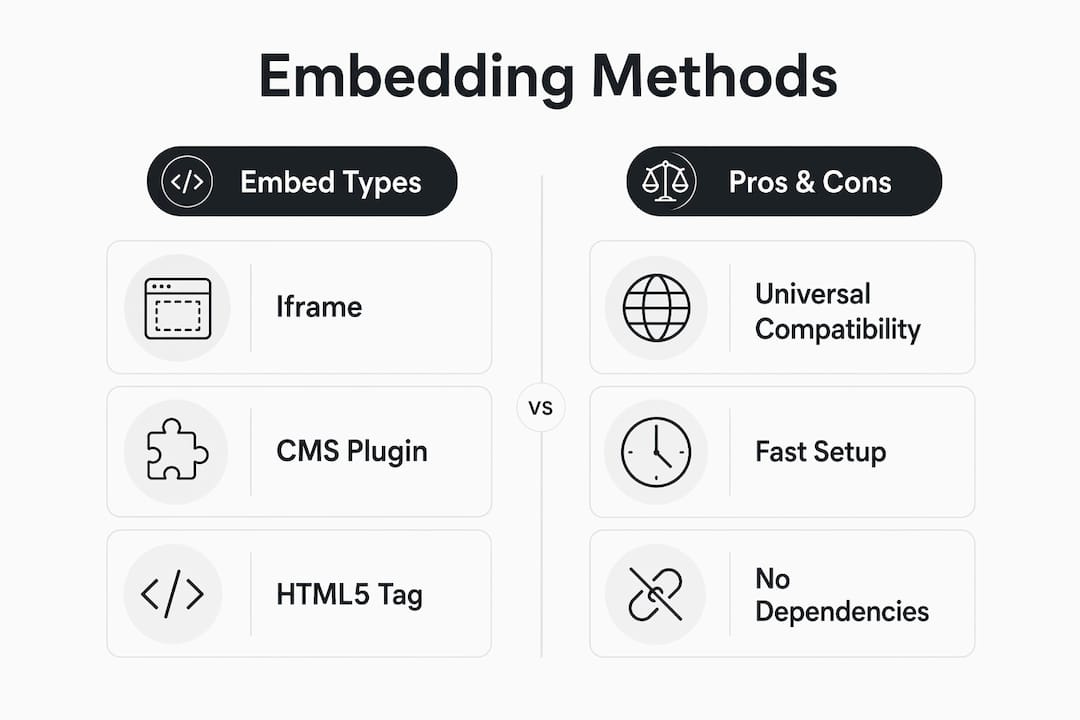
Iframe embeds work on virtually all major web platforms, making them the most universally compatible option. You paste a single <iframe> snippet into any page editor, and the player renders with full controls. No plugin installation, no platform-specific configuration.
CMS plugins are the fastest path on WordPress. You install a plugin, paste a shortcode like [audio src="your-file.mp3"] into a block, and the player appears. The trade-off is that you depend on the plugin developer for updates and security patches. Plugins also add HTTP requests, which can slow page load if you stack too many.
The native HTML5 <audio> tag is the leanest option. It requires no third-party dependency and loads instantly, but it offers almost no visual customization out of the box. Browser rendering varies, so the player looks different in Chrome versus Safari versus Firefox. That inconsistency frustrates creators who care about brand presentation.
| Method | Best for | Key advantage | Main limitation |
|---|---|---|---|
| CMS plugin | WordPress sites | Fast setup, shortcode support | Plugin dependency, update risk |
| Iframe embed | All platforms | Universal compatibility | Limited deep CSS customization |
HTML5 <audio> tag |
Plain HTML sites | Zero dependencies, fast load | Inconsistent browser styling |
| JavaScript library | Custom builds | Full control over UI | Requires coding knowledge |
The iframe approach wins for cross-platform projects. If you manage audio on WordPress, Squarespace, and Webflow simultaneously, a single hosted iframe snippet keeps all three players in sync without touching each site’s code individually.
How to prepare your audio files and hosting for embedding
The format you choose affects playback compatibility across devices. Broadly supported audio formats include:
- MP3 — the safest universal choice; plays in every browser and mobile OS
- AAC / M4A — better quality at lower file sizes; native on Apple devices
- OGG — open format with strong Firefox and Android support
- WAV — uncompressed, high quality, but large file sizes slow page load
- FLAC — lossless compression; use only when audio fidelity is the product
MP3 at 128 kbps covers most spoken-word content. For music or high-fidelity narration, 192 kbps or 256 kbps AAC delivers noticeably better results without bloating file size.
Hosting location matters as much as format. Direct server hosting causes bandwidth throttling and playback interruptions when traffic spikes. A dedicated audio hosting service or content delivery network (CDN) distributes the file load across multiple servers, so a listener in Los Angeles and one in Atlanta both get fast, uninterrupted playback. Whisprstream handles this at the infrastructure level, so you never configure a CDN manually.
Separating audio file management from your website CMS means you can update an audio file centrally and every page that embeds it reflects the change automatically. No hunting through twenty blog posts to swap out an old recording.
Pro Tip: Never upload raw WAV files to your web server as the primary source. Convert to MP3 or AAC first, then host on a CDN. Your page load scores and listener experience will both improve immediately.
Step-by-step process to embed a player on popular platforms
The steps vary by platform, but the core logic is the same: get your embed code, find the right block type, paste it in, and save.
WordPress
- Install an audio player plugin from the WordPress plugin directory.
- Upload your audio file to the plugin’s media library or paste a hosted URL.
- Copy the generated shortcode (example:
[audio_player id="42"]). - Open your post or page, add a Shortcode block, and paste the shortcode.
- Preview and publish.
WordPress uses shortcode blocks through plugins, which means non-technical editors can add players without touching HTML. That is a real operational advantage for content teams.
Squarespace, Wix, and Webflow
- Generate your iframe embed code from your audio hosting service.
- In Squarespace, add a Code block to your page layout.
- In Wix, use the HTML iframe widget from the Add Elements panel.
- In Webflow, drop an Embed element into your canvas.
- Paste the iframe code, set width to 100% for responsive behavior, and publish.
Plain HTML sites
- Place your audio file on a CDN or dedicated host.
- Add
<audio controls src="https://your-cdn.com/episode.mp3"></audio>to your HTML. - For a styled player, wrap it in a JavaScript library like Howler.js or use a hosted iframe instead.
| Platform | Recommended block type | Key tip |
|---|---|---|
| WordPress | Shortcode block | Use a plugin with hosted URLs to avoid server load |
| Squarespace | Code block | Set iframe width to 100% for mobile responsiveness |
| Wix | HTML iframe widget | Test on mobile preview before publishing |
| Webflow | Embed element | Use CSS classes to match player to site design |
| Plain HTML | <audio> tag or iframe |
Prefer iframe for consistent cross-browser styling |
When your audio lives on a dedicated host, updates to the file auto-reflect in every embed. You change the file once, and all instances update without any code edits.
What customization and playlist management options are available?
Player appearance and behavior directly affect whether visitors actually press play. A player that clashes with your site’s color scheme or buries the play button loses listeners before the first second of audio.
The most useful customization options to look for include:
- Colors and theming — match the player’s background, progress bar, and button colors to your brand palette
- Player size — set fixed or percentage-based widths so the player fits sidebars, full-width sections, or mobile layouts
- Track metadata — display episode title, artist name, and cover art so listeners know what they are hearing
- Playback controls — toggle autoplay, shuffle, loop, and skip buttons based on your content type
- Progress bar — a scrubable timeline is non-negotiable for anything longer than two minutes
Players that allow adding or removing multiple tracks dynamically create a richer, more engaging experience than fixed single-track players. A playlist widget turns a single embed into a full content library, which keeps visitors on your site longer.
Pro Tip: Choose a player solution that decouples audio management from your CMS. When your audio library lives outside your website’s database, you can swap tracks, reorder playlists, and fix errors without touching a single page’s code.
Autoplay deserves a specific note. Browsers including Chrome and Safari block autoplay with sound by default unless the user has previously interacted with your site. Design your player to start muted or require a click. Forcing autoplay with sound frustrates visitors and triggers browser suppression.
Key Takeaways
The most reliable embedded audio player setup combines a CDN-hosted audio file, an iframe or plugin-based embed, and a player that manages tracks independently from your website CMS.
| Point | Details |
|---|---|
| Choose the right embed method | Iframe embeds work across all major platforms; plugins suit WordPress-only workflows. |
| Host audio on a CDN | Direct server hosting causes throttling; a CDN delivers stable playback at scale. |
| Use playlist-ready players | Dynamic track management keeps visitors engaged longer than single-track players. |
| Decouple audio from your CMS | Central audio hosting lets you update files without editing embedded code on every page. |
| Match player controls to content | Scrubable progress bars and metadata display are non-negotiable for content longer than two minutes. |
What I’ve learned from embedding audio players across dozens of sites
Cross-browser compatibility is the hidden cost nobody budgets for. You build a beautiful custom player in Chrome, ship it, and then discover it renders as a gray bar in Safari and breaks entirely on older Android browsers. I have watched development teams spend more time debugging browser quirks than they spent building the player itself.
The fix is straightforward. Iframe embeds or mature JavaScript libraries maintain consistent transport controls across browsers and screen sizes. They are not glamorous, but they work. Resist the urge to build a fully custom player from scratch unless your product is literally the player.
The second mistake I see constantly is hosting audio on the same server as the website. Traffic spikes kill playback. A viral article that sends 10,000 simultaneous listeners to your server will throttle audio before it throttles page load, because audio streaming is bandwidth-heavy and continuous. Dedicated audio hosting or CDN solutions solve this entirely, and the cost is almost always lower than the engineering time spent debugging server issues.
Future-proofing your embed is simpler than most developers think. Use a hosted player that generates a stable embed URL. When you need to update the audio, change the file at the source. Every page that references that URL reflects the update instantly. You never touch the embed code again. That single architectural decision saves hours of maintenance per year on any site with more than a handful of audio files.
— Pedro
Whisprstream makes audio embedding easier for content creators
Content creators who want audio on their site without managing hosting, CDN configuration, or embed code updates have a direct path forward with Whisprstream.
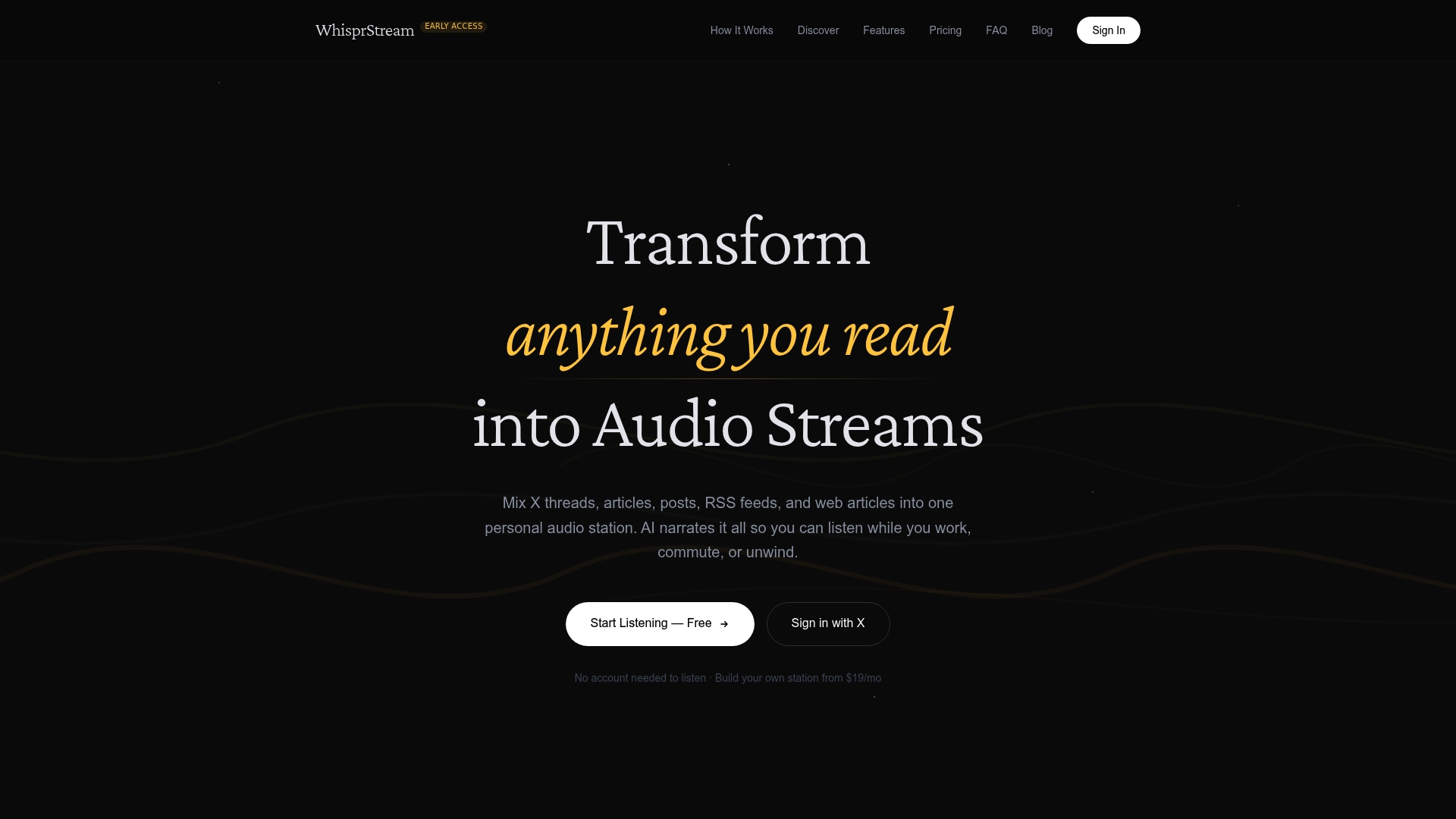
Whisprstream converts text content, RSS feeds, and social threads into AI-narrated audio, then delivers it through hosted embed codes that update automatically. You connect your content sources, and Whisprstream handles the audio generation, hosting, and player delivery. The public stations feature lets you organize audio into curated collections that embed anywhere. No CDN setup, no plugin conflicts, no manual file uploads. If you publish content regularly and want listeners to find it on your site, Whisprstream removes every technical barrier between your words and your audience’s ears.
FAQ
What is the best method to embed an audio player on a website?
Iframe embeds offer the broadest compatibility across WordPress, Wix, Squarespace, Webflow, and Shopify. For WordPress-only sites, a plugin with shortcode support is faster to set up.
What audio file formats work with embedded players?
MP3, AAC, M4A, OGG, and WAV are broadly supported formats across all major browsers and devices. MP3 is the safest default for universal playback.
Why should I avoid hosting audio on my main web server?
Direct server hosting causes bandwidth throttling during traffic spikes, which interrupts playback. A dedicated audio host or CDN distributes the load and keeps playback stable.
Can I update my audio without changing the embed code on every page?
Yes. When you host audio on a dedicated service and separate audio management from your CMS, updating the source file automatically updates every page that embeds it.
Does autoplay work on embedded audio players?
Most modern browsers block autoplay with sound by default. Design your player to require a user click or start muted to avoid browser suppression and a poor first impression.