Convert Text to Audio Online: Your Practical Guide

Text-to-speech (TTS) technology is defined as the process of transforming written content into natural, spoken audio using AI-powered neural voice models. When you convert text to audio online, you get instant access to human-sounding narration without recording a single word yourself. This makes TTS a practical tool for commuters, students, and professionals who want to absorb articles, newsletters, and documents while walking, driving, or cooking. Modern AI voice engines have moved far beyond robotic monotone. Today’s systems mimic human intonation and emotion, making long-form listening genuinely enjoyable.
What tools do you need to convert text to audio online?
The right setup makes the difference between a frustrating experience and one that actually sticks as a daily habit. Most tools run directly in your browser, so no software installation is required.

Device and browser compatibility
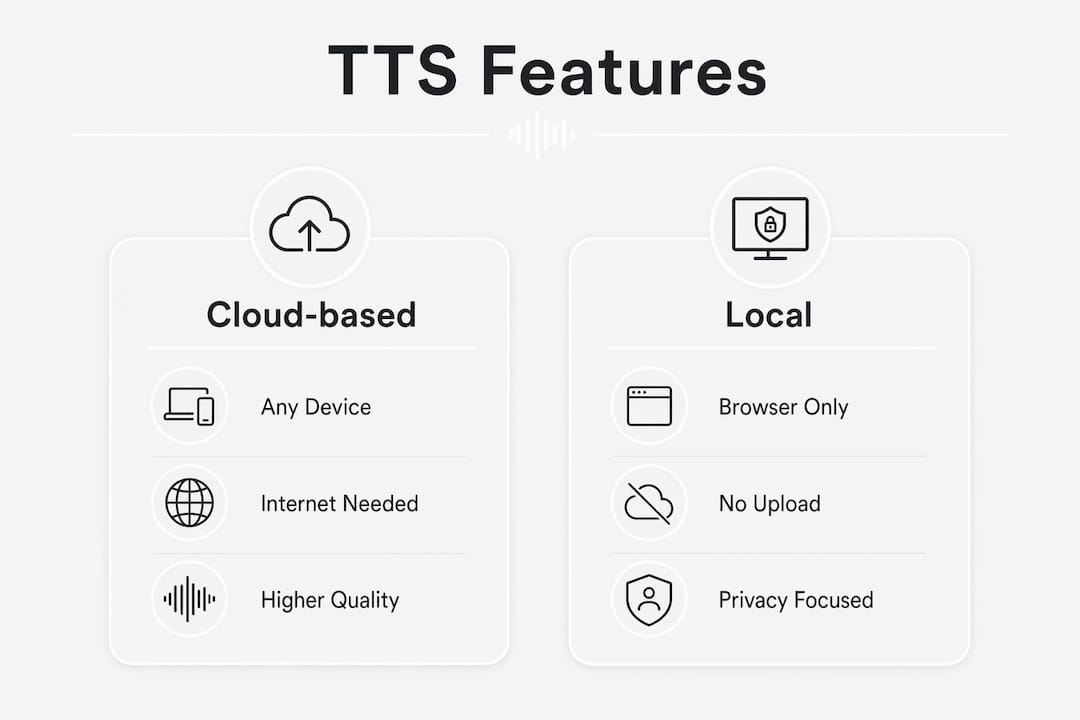
Desktop browsers like Chrome, Edge, and Firefox handle the full range of TTS tools, including those that run AI models locally on your device. Mobile browsers often lack the memory needed for local AI processing, so local AI models like Kokoro are typically desktop-only. Cloud-based TTS tools work on any device with a browser and an internet connection. If you plan to convert text to audio on your phone, stick with cloud-based options.
Core features to look for
Not all TTS tools are equal. Before committing to one, check for these features:
- Language support. Top-tier TTS platforms support 60 to 125+ languages with voice libraries ranging from 500 to 2,000 profiles. That range matters if you work with multilingual content.
- Voice variety. Look for tools that offer multiple accents, genders, and emotional tones, not just a single default voice.
- Speed control. Most free TTS services let you adjust playback speed from 0.5× to 2.0×, preserving natural voice quality throughout.
- Export formats. MP3 and WAV are the standard outputs. Confirm the tool supports the format you need before you start.
- Privacy options. Some tools process text entirely in-browser, meaning your content never reaches a server.
Pro Tip: If you are converting sensitive documents, choose a tool with local, in-browser processing. The Kokoro AI model, for example, runs entirely on your device with no server upload required.
The table below compares the two main processing approaches:
| Feature | Cloud-based TTS | Local (in-browser) TTS |
|---|---|---|
| Device compatibility | Any device, any browser | Desktop browsers only |
| Privacy | Text sent to server | Text stays on device |
| Voice library size | Large (500–2,000+ voices) | Limited to bundled model |
| Setup required | None | Initial model download |
| Best for | Variety and convenience | Privacy-sensitive content |
How to convert text to audio online step by step
The general workflow is consistent across most TTS tools. Follow these steps and you will have a finished audio file in minutes.
-
Paste or upload your text. Most tools accept direct text input, plain .txt files, PDFs, and Word documents. For PDFs, copy the text manually if the tool does not support direct PDF upload, since formatting artifacts can disrupt the narration.
-
Select your language and voice. Choose the language that matches your content. Then pick a voice based on accent, gender, and tone. Listen to a short preview before committing, since voice quality varies widely even within the same platform.
-
Adjust speed and pitch. Set the reading speed to match your listening preference. A speed of 1.25× works well for most people consuming informational content. Slower speeds (0.75×) help with dense technical material.
-
Customize pauses and punctuation handling. Some tools let you insert manual pauses using punctuation cues or special tags. Adding a comma or period where the text runs long improves the natural flow of the narration.
-
Generate and preview the audio. Run a short preview before generating the full file. Sentence-by-sentence processing in some tools lets you hear audio almost immediately without waiting for the full document to render.
-
Download your audio file. Export as MP3 for everyday listening or WAV for editing. Most free TTS tools deliver watermark-free MP3 and WAV files, even on free plans. That means you can use the file in a podcast, study app, or personal archive right away.
-
Handle long documents by splitting the text. Many free TTS services cap input at around 4,500 to 5,000 characters per generation. Split long articles into sections, convert each one separately, then join the audio files using a free audio editor like Audacity.
Pro Tip: Name each audio chunk with a number before you start (e.g., “chapter-01,” “chapter-02”) so reassembling the final file stays organized and fast.
How to choose the right voice, language, and audio format
Voice selection is where most people spend too little time. The wrong voice makes even great content hard to listen to for more than a few minutes.
Voice types and emotional tone
Neural TTS models train on hours of real human speech to replicate natural intonation, rhythm, and emotion. The result is narration that rises and falls like a real person speaking, rather than reading words at a flat pitch. Some platforms aggregate voices from multiple AI providers, giving you access to thousands of profiles with nuanced tone control. This matters most for long-form content like newsletters, research papers, or audiobooks, where listener fatigue sets in quickly with a monotone voice.
When choosing a voice, consider these factors:
- Accent match. An American English accent works best for American audiences. A British accent can feel formal or distant to US listeners consuming casual content.
- Gender and age. Different voices carry different authority levels depending on the content type. A warm, mid-range voice works well for educational material.
- Emotional tone. Some tools let you toggle between neutral, cheerful, or serious delivery. Match the tone to your content’s purpose.
- Localization. If your content targets a specific region, choose a voice that reflects that region’s speech patterns. Listeners notice mismatched accents immediately.
For readers who want to listen to long-form writing as audio, voice selection is the single biggest factor in whether the habit sticks.
Audio format comparison
| Format | File size (per minute) | Quality | Best use case |
|---|---|---|---|
| MP3 | ~1.4 MB | Compressed | Podcasts, commuting, mobile listening |
| WAV | ~3 MB | Lossless | Studio editing, professional production |
High-fidelity WAV files at 16-bit or 24-bit are the standard for studio production. MP3 suits everyday mobile listening because the smaller file size loads faster and uses less storage. Choose WAV if you plan to edit the audio further. Choose MP3 if you just want to listen.
Tips and troubleshooting for better text-to-audio results
Even with a good tool, small mistakes can produce audio that sounds off. These fixes address the most common problems.
- Break up long documents. Free tools cap input at roughly 4,500 to 5,000 characters. Splitting text into logical sections, like paragraphs or chapters, produces cleaner audio than cutting mid-sentence.
- Clean your text before converting. Remove special characters, URLs, and formatting symbols. These often get read aloud literally, which breaks the listening experience.
- Use local processing for private content. Cloud tools send your text to external servers. For confidential documents, a local AI model keeps your data on your device.
- Reduce generation time on long files. Tools that process sentence by sentence let you start listening almost immediately. This is faster than waiting for a full-document render on a large file.
- Fix distorted or unnatural speech. Unnatural pauses usually come from missing punctuation. Add periods and commas where the text runs long. Distorted audio often signals a file export issue. Re-export at a lower speed setting and check your browser’s audio output settings.
“The biggest quality jump in AI narration comes not from the voice model itself, but from how well you prepare the source text. Clean, well-punctuated input produces noticeably more natural audio output, regardless of which tool you use.”
Pro Tip: Run a 30-second test conversion on a sample paragraph before processing a full document. This catches formatting issues early and saves you from re-converting a 10,000-word file.
Key Takeaways
The most effective way to convert text to audio online is to prepare your text carefully, choose a voice matched to your content type, and select MP3 or WAV based on how you plan to use the file.
| Point | Details |
|---|---|
| Prepare text before converting | Remove URLs, symbols, and formatting errors to get cleaner, more natural narration. |
| Match voice to content type | Choose accent, tone, and gender based on your audience and the subject matter. |
| Split long documents | Free tools cap input at roughly 4,500–5,000 characters; chunk text and rejoin audio files. |
| Pick the right format | Use MP3 for everyday listening and WAV for professional editing or studio production. |
| Use local processing for privacy | In-browser AI models keep your text on your device with no server upload. |
Why I think most people underestimate voice selection
Pedro here. I have spent years working with AI narration tools across education, media, and personal productivity. The one mistake I see constantly is people picking the first default voice and calling it done.
Voice selection is not a cosmetic choice. It determines whether you finish listening to a 20-minute article or abandon it at the three-minute mark. I have tested tools that offer thousands of AI voices from multiple providers, and the difference between a well-matched voice and a generic one is the difference between a habit that sticks and one that fades after a week.
The other thing most guides skip: local processing is genuinely underrated for anyone handling sensitive content. Yes, it requires a desktop browser and an initial model download. But the privacy tradeoff is worth it for professional documents. I expect local AI TTS to become the default for enterprise use within the next few years as device processing power continues to grow.
The future of this space is not just better voices. It is smarter content routing, where your reading list automatically becomes a personalized audio feed you can listen to anywhere. That shift is already happening, and it changes how we think about consuming written information entirely.
— Pedro
Whisprstream turns your reading list into a personal audio station
If you want to go beyond one-off file conversions, Whisprstream does something different. You connect your RSS feeds, paste article links, or sync your X account, and Whisprstream assembles everything into a continuous, podcast-style audio stream with natural AI narration.
There are no awkward pauses between content types, and the AI handles articles, threads, and newsletters in one cohesive flow. You can build your audio station for free, with no credit card required on the free plan. Whisprstream also offers a wide voice library and export options suited for both personal listening and accessibility use cases. If your goal is to make audio consumption a real daily habit rather than an occasional workaround, Whisprstream is built for exactly that.
FAQ
What is text-to-speech and how does it work?
Text-to-speech (TTS) is a technology that converts written text into spoken audio using AI neural voice models. Modern TTS systems train on hours of human speech to produce natural-sounding narration with realistic intonation and rhythm.
Can I convert text to audio for free?
Most TTS platforms offer a free tier that lets you generate and download audio files without a watermark. Free plans typically cap input at around 4,500 to 5,000 characters per conversion.
What audio format should I download, MP3 or WAV?
MP3 is the best choice for everyday listening because it produces smaller files at roughly 1.4 MB per minute. WAV is lossless and better suited for professional editing or studio production at around 3 MB per minute.
Is my text private when I use an online TTS tool?
Cloud-based TTS tools send your text to external servers for processing. For private or sensitive content, use a local in-browser AI model like Kokoro, which processes everything on your device with no server upload.
How do I handle documents that are too long for a TTS tool?
Split the document into sections of roughly 4,500 characters or fewer, convert each section separately, then join the resulting audio files using a free audio editor like Audacity.